How to export your trades from Tradovate (and which CSV you actually need)
Tradovate's account reports give you seven different exports. Here's what each one contains, which ones a trading journal needs, and the gotchas that make P&L look wrong.
· 4 min read
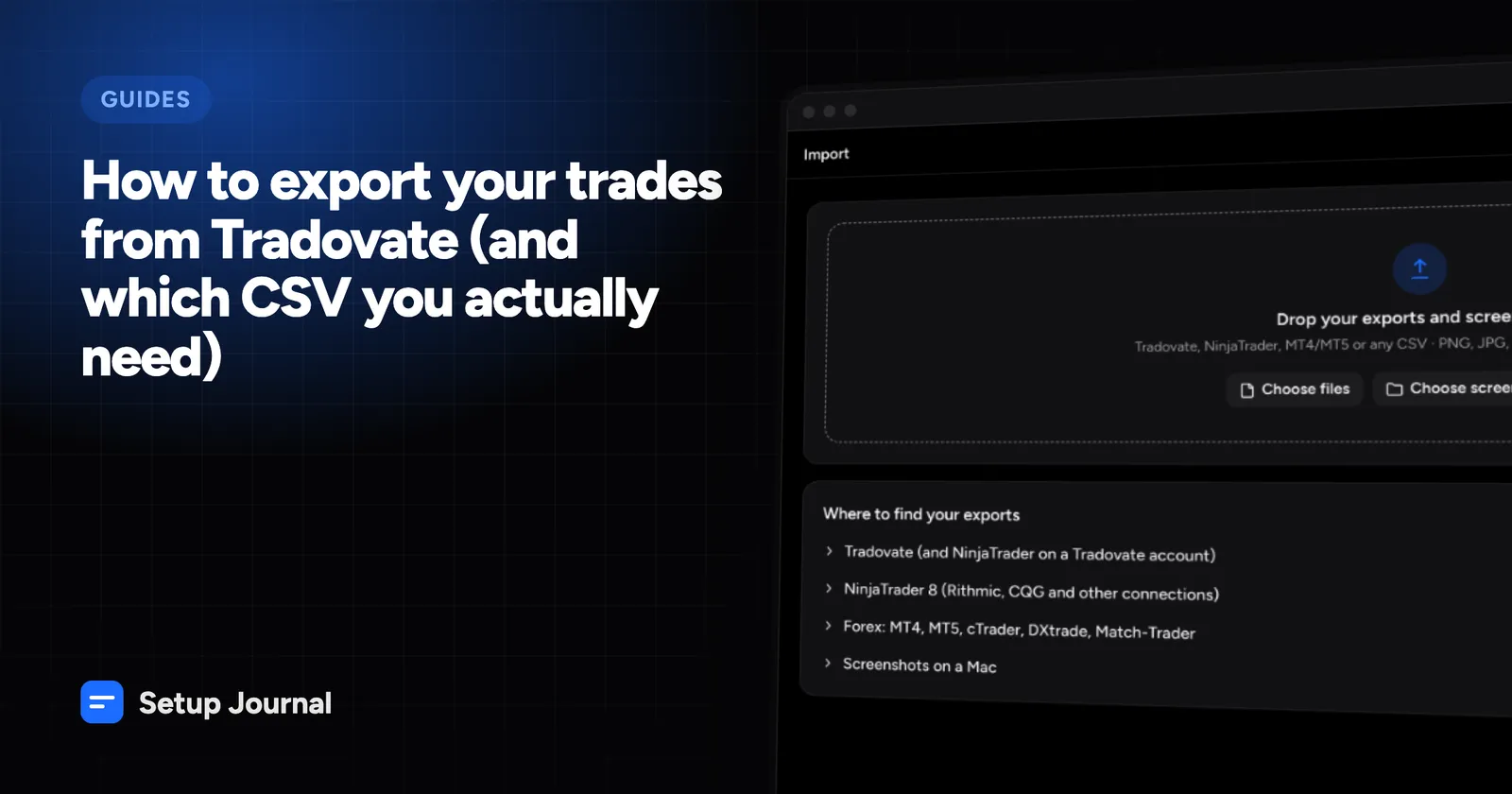
Tradovate gives you more trade data than almost any other futures platform. Its account reports have a separate tab for each kind of data, and every tab has a Download CSV button. The catch is knowing which ones you need. Most of them overlap, and one of them quietly leaves out most of your fees.
This guide covers what’s in each export, which ones to use for journaling, and the three mistakes that make your numbers disagree with your statement.
Where the exports are
Open your account reports in Tradovate. You’ll see a row of tabs:
- Performance
- Orders
- Position History
- Cash History
- Order Details
- Fills
- Account Balance History
Under the tabs is a date filter. Pick Yesterday, a single Day, or a From and To range, click Go, then Download CSV. Each tab downloads separately, so you click once per tab you want.
What each export contains
| Export | One row per | Use it for |
|---|---|---|
| Fills | Execution | Rebuilding trades exactly. The best source. |
| Cash History | Cash movement (each fee, each realized P&L) | Exact fees and net P&L |
| Orders | Order (including canceled ones) | Your stop and target prices |
| Account Balance History | Day | Checking totals against your account |
| Position History | Paired buy and sell | Cross-checking P&L |
| Performance | Paired buy and sell | Quick look at P&L per pair |
| Order Details | Order event | Order modifications, rarely needed |
Fills
Every execution, with its fill ID, order ID, timestamp, side, quantity, price, contract and commission. If you scaled into a position with three orders and out with two, you get five rows.
There are two timestamp columns. Timestamp is shown in your own timezone (for example 11/06/2026 20:59:04). _timestamp is in UTC (2026-11-06 15:29:04.802Z). A good importer uses the UTC column and doesn’t need to know your timezone at all.
Cash History
Every change to your cash balance. For each fill you’ll typically see four rows: Commission, Exchange Fee, Clearing Fee and Nfa Fee. Each closed position also adds a Trade Paired row with its realized P&L.
This is the export most traders skip, and it’s the reason their journal’s P&L never matches their statement. See why your journal P&L doesn’t match your broker.
Orders
Every order you placed, including canceled ones, with its type (Market, Limit, Stop), status, limit price and stop price. If you trade with brackets, this is where your stop loss and profit target live. A journal can use them to work out how much you risked on each trade and your R-multiple.
Performance and Position History
Both pair your buys with your sells and show the P&L of each pair. They’re handy for a quick check, but a pair isn’t a trade. If you sold two contracts and covered them one at a time, you get two rows for what was really one trade. They also report P&L before fees.
Account Balance History
One row per day with your balance and the day’s total realized P&L after fees. It’s the number your broker considers true, which makes it the perfect check for any journal.
Which exports to use for journaling
For an accurate journal, download these three every day:
- Fills to rebuild every trade from its executions.
- Cash History for every fee.
- Orders for your stops and targets.
Add Account Balance History if you want your journal to confirm it matches your account to the cent.
Three gotchas
1. Commission isn’t your total fee. The Fills export only has a commission column. On a micro contract the exchange, clearing and NFA fees can be more than the commission itself. Without Cash History, your journal shows your P&L as better than it really was.
2. Pairs aren’t trades. If you count each row of Performance as a trade, partial exits inflate your trade count and distort your win rate. Rebuild trades from fills instead: a trade starts when your position leaves flat and ends when it returns to flat.
3. Your trading day may not be your calendar day. CME futures sessions start at 6:00 pm New York time, so a trade at 7:00 pm New York belongs to the next trading day. It works the other way for traders in Asia: a trade at 1:00 am in India is still part of the previous day’s US session. Tradovate’s Account Balance History uses the exchange trading day, so your journal should too.
Doing it in one step
Setup Journal reads all of these exports directly. Drop them in together with the screenshots you took while trading. It recognizes each file from its columns, rebuilds your trades from the fills, adds every fee from Cash History, takes stops from Orders, and checks the result against Account Balance History. If you trade through NinjaTrader on a Tradovate account, the same exports work. There’s a step-by-step Tradovate guide too.