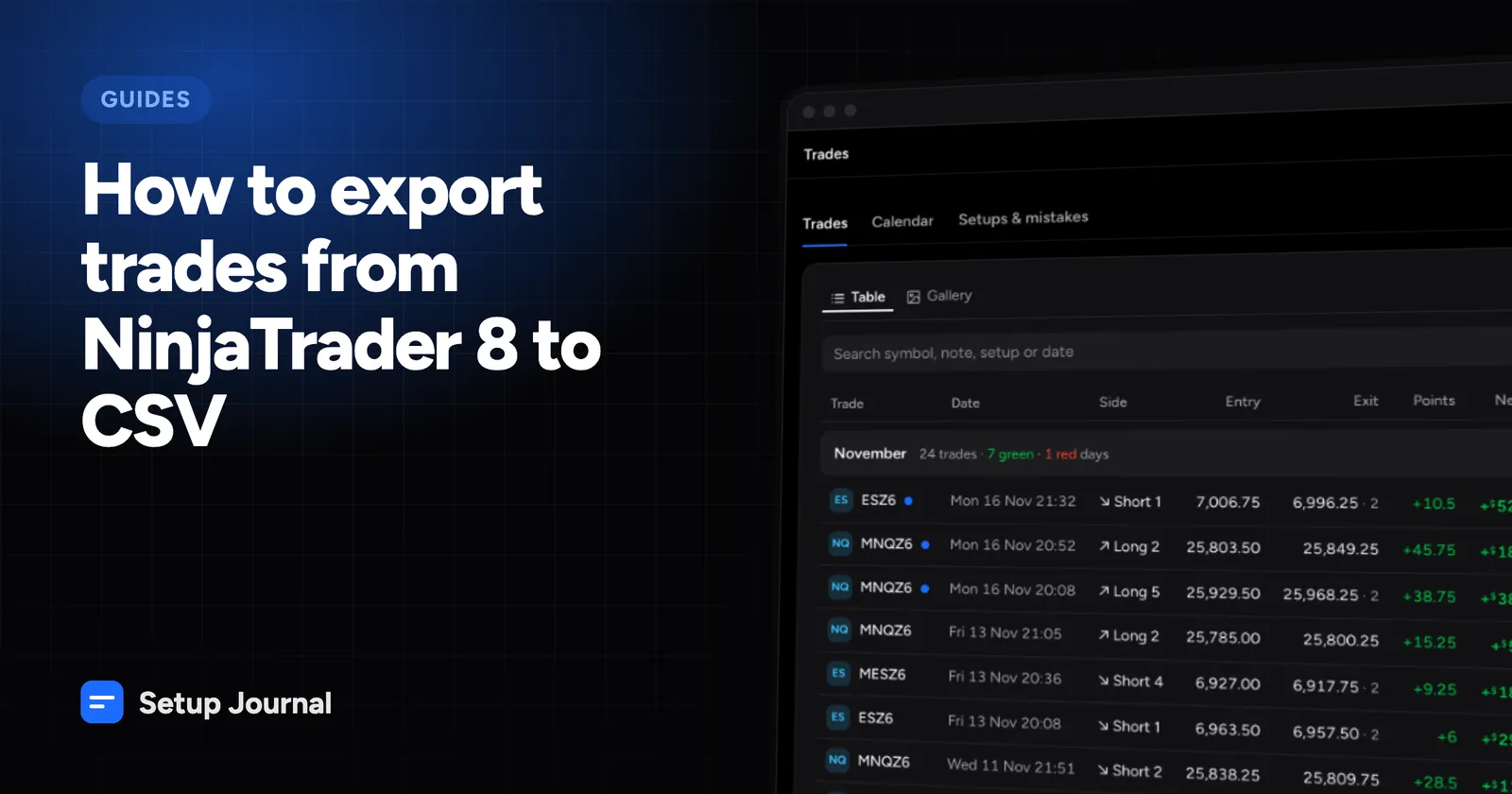
How to export trades from NinjaTrader 8 to CSV
Step-by-step: export your executions or trades from NinjaTrader 8's Trade Performance window, what the columns mean, and how to avoid timezone surprises.
· 2 min read
NinjaTrader 8 doesn’t have a big “Export my trades” button, but every grid in the platform can be exported. The one you want for journaling is in Trade Performance. Here’s how to get a clean CSV of your executions, whether you’re connected through Rithmic, CQG or a Tradovate account.
Step by step
- In the Control Center, open New → Trade Performance.
- On the left, pick your account (or several), the instrument if you want to narrow it down, and the date range.
- Click Generate.
- Switch the results display to Executions.
- Right-click anywhere in the grid and choose Export. Save the file as CSV.
That’s it. The same right-click Export works in the Trades view if you’d rather have one row per round trip.
For today’s session only, the Executions tab of the Control Center shows the same data and can be exported the same way.
Executions or trades?
Executions are better for a journal. You get every fill with its exact time, price, quantity and commission, so a journal can rebuild each trade itself. That includes scale-ins, partial exits and positions that flip from long to short.
Trades are already paired, one row per round trip, with entry and exit price and time, profit and commission. Use them if they’re all you have. Keep in mind that the pairing follows NinjaTrader’s own rules, which may not match how you think about a trade.
The columns
A NinjaTrader 8 Executions export typically includes these columns (the exact set can vary by version and grid settings):
| Column | Example | Meaning |
|---|---|---|
| Instrument | MNQ 12-26 |
Contract root and expiry month |
| Action | Buy, Sell |
Side of the fill |
| Quantity | 2 |
Contracts filled |
| Price | 27175.50 |
Fill price |
| Time | 11/6/2026 10:29:04 AM |
Fill time, in NinjaTrader’s timezone |
| E/X | Entry, Exit |
NinjaTrader’s view of whether it opened or closed |
| Position | 2L |
Position after the fill |
| Commission | $0.78 |
Commission for this fill |
| Account | Sim101 |
Account name |
Watch the timezone
The Time column has no timezone. NinjaTrader writes it in the timezone set under Tools → Options → General, which is your computer’s timezone by default.
That matters if you trade the US session from somewhere else, or if your journal tries to match screenshots by time. Make sure your journal reads these times in the same zone NinjaTrader used. In Setup Journal, that’s the timezone setting, which defaults to your computer’s.
Fees
The Commission column is the commission NinjaTrader knows about. Depending on your broker, exchange and clearing fees may be charged separately and won’t appear here. If your account is with Tradovate, its Cash History export has every fee line. See how to export trades from Tradovate.
Importing into a journal
Drop the CSV into Setup Journal along with your chart screenshots. It recognizes the NinjaTrader format automatically, rebuilds your trades from the executions, and attaches each screenshot to the trade it belongs to. The NinjaTrader guide has more detail.