Trade screenshots that file themselves: a setup for Mac and Windows
The fastest way to capture your charts while trading, where to save them, and why the filename is the most important part of a trade screenshot.
· 2 min read
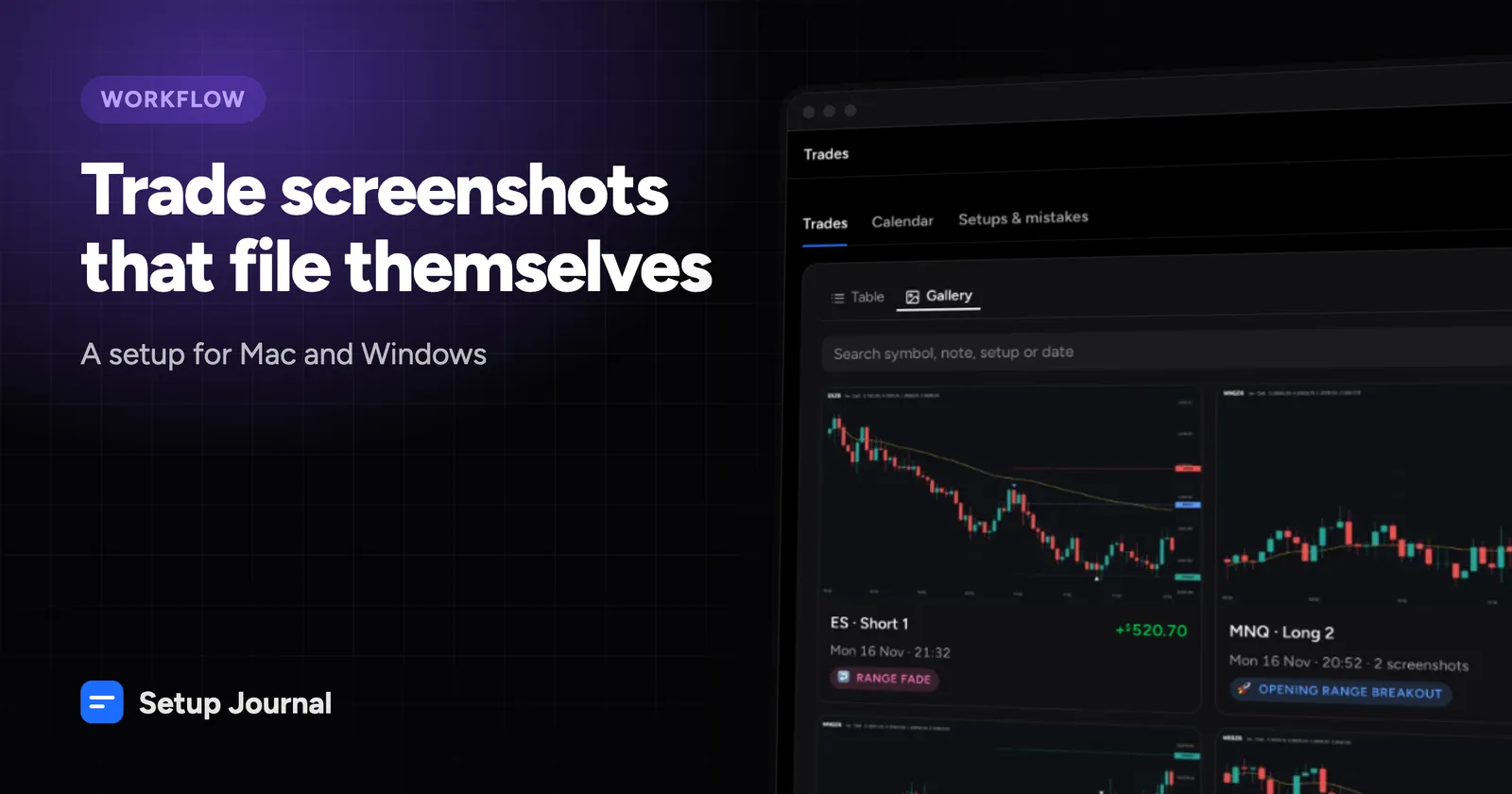
A screenshot is the best trade note you can take. It records the chart, your order lines, your open P&L and the exact moment. It also takes one keystroke, which matters when you’re in a position and your attention should be on price.
The problem comes later: a Desktop full of files named “Screenshot…” and no idea which trade each belongs to. Here’s a setup that avoids that.
The keystrokes (Mac)
| Shortcut | Captures |
|---|---|
| ⌘⇧3 | The whole screen. With more than one display, one file per display. |
| ⌘⇧4 | An area you drag out |
| ⌘⇧4, then Space | One window |
| ⌘⇧5 | The screenshot toolbar, with options |
For trading, ⌘⇧3 is usually the best choice. One keystroke, nothing to aim, and you capture everything: chart, DOM, order panel and account P&L.
Save them to their own folder
By default macOS saves screenshots to the Desktop. Give them their own folder instead:
- Press ⌘⇧5.
- Click Options.
- Under Save to, choose Other Location… and pick or create a folder, for example
TradeShots.
From then on every screenshot lands there. If you prefer Terminal:
mkdir -p ~/TradeShots
defaults write com.apple.screencapture location ~/TradeShots
Why the filename matters
A macOS screenshot is named like this:
Screenshot 2026-11-06 at 8.59.14 PM.png
That’s the date and time to the second. As long as you don’t rename the file, it can be matched to the trade that was open at that moment. That’s the whole trick to screenshots that file themselves.
Some details if you’re building your own system:
- Newer macOS versions put a special narrow no-break space (U+202F) before AM/PM, not a regular space. Scripts that look for a normal space miss it.
- With several displays, ⌘⇧3 makes one file per screen with the same time, the second ending in
(2). - The time in the filename is your Mac’s local time. The file’s own “modified” date is stored as an absolute moment, so comparing the two tells you the timezone the screenshot was taken in.
Windows
- Win+Shift+S opens the Snipping Tool. On Windows 11 it can save every capture automatically to
Pictures\Screenshots, with the date and time in the filename. - Win+PrtScn saves the whole screen to
Pictures\Screenshots, but with a numbered name likeScreenshot (12).png. There’s no time in the name, so a journal has to rely on the file’s date instead.
TradingView and other tools
TradingView’s chart snapshot downloads include the symbol, date and time in the filename. CleanShot X on Mac uses CleanShot 2026-11-06 at 20.59.14@2x.png. Both work for matching by time.
When to take them
Three screenshots per trade is plenty:
- Before entry, showing the setup you’re seeing.
- In the trade, once your stop and target are placed.
- After exit, showing what price did next.
Matching them automatically
Drop the whole folder into Setup Journal together with your broker exports. It reads the time from every filename, learns the timezone from the file dates, and attaches each screenshot to the trade that was open, labeled before, during or after exit. Screenshots that don’t fit any trade wait in a tray where you can assign them by hand.